Advantages and Disadvantages of Computer
Published: 1 Nov 2026
Computers have become an important part of our daily lives. We use them for education, office work, online communication, business, entertainment, and many other activities. They help us complete tasks, store information, and access digital resources more easily.
However, computers also have some disadvantages. Spending too much time on a computer can affect our health, create security risks, and lead to problems such as data loss or overdependence on technology.
Understanding the advantages and disadvantages of computers can help us use them more effectively. In this article, I will explain major advantages and disadvantages of computers, along with their common uses and important factors to consider.
Advantages of Computer
There are many advantages of computers in education, business, communication, research, and everyday life. They help people work efficiently, manage information, and complete tasks that might otherwise take more time.
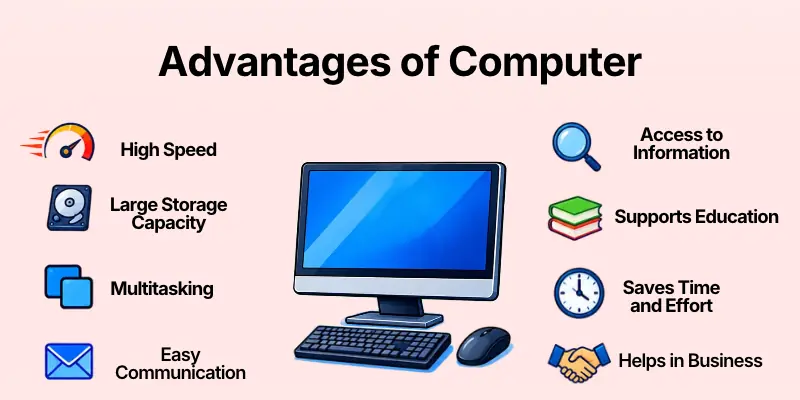
The following are important advantages of computers.
- High Speed
- Accuracy in Calculations
- Large Storage Capacity
- Multitasking
- Easy Communication
- Access to Information
- Supports Education
- Improves Productivity
- Saves Time and Effort
- Helps in Business
- Supports Online Banking
- Provides Entertainment
- Helps in Research
- Data Organization
- Improves Graphic Design
- Supports Remote Work
- Automation of Tasks
- Online Shopping
- Reliable Data Processing
- Global Connectivity
Let’s discuss the advantages of computer in detail.
1. High Speed
One of the main advantages of computers is their ability to process information quickly. They can perform millions or billions of operations in a short time, depending on their hardware and the task involved.
This speed is useful for students, employees, researchers, and businesses. Tasks such as calculations, document processing, and searching stored information can often be completed much faster than through manual methods.
Computers can help with:
- Performing complex calculations
- Opening and editing documents
- Processing large datasets
- Searching digital files
- Completing repetitive operations
Choose Wisely: Select a computer with suitable processing power for the tasks you perform regularly.
2. Accuracy in Calculations
Computers can perform mathematical calculations accurately when they receive correct instructions and suitable data. This makes them useful for accounting, scientific work, engineering, and many other activities.
However, computers are not completely free from errors. Incorrect data, faulty software, or wrong instructions can produce incorrect results.
Computers support accurate work through:
- Performing mathematical calculations
- Checking spreadsheet formulas
- Processing financial records
- Applying consistent instructions
- Reducing manual calculation mistakes
Check Your Results: Review important calculations and make sure the information entered into the computer is correct.
3. Large Storage Capacity
Computers can store large amounts of information in digital form. Users can save documents, photographs, videos, software, and other files without needing physical storage space for every item.
Storage capacity depends on the device and its storage drive. Files can also be backed up to external drives or suitable cloud services to reduce the risk of losing important information.
Computers can store:
- Educational documents
- Personal photographs
- Business records
- Videos and audio files
- Software and project files
Protect Your Files: Keep important data backed up and organize files into clearly named folders.
4. Multitasking
Computers allow users to work with multiple applications and tasks. For example, a student can attend an online class, take notes, and consult a digital textbook on the same device.
The number of tasks a computer can handle smoothly depends on its memory, processor, software, and workload. Too many open applications may slow down a device.
Computers support multitasking through:
- Running multiple applications
- Switching between documents
- Browsing different websites
- Playing audio while working
- Managing several work tasks
Manage Applications: Keep only the programs you need open when your computer starts running slowly.
5. Easy Communication
Computers make it easier for people to communicate across different locations. Email, messaging platforms, video calls, and collaboration tools help people exchange information without meeting in person.
These features are useful for families, students, businesses, and remote teams. However, users should follow good online communication habits and protect their accounts.
Computers help people communicate through:
- Sending emails
- Joining video meetings
- Sharing documents
- Using messaging services
- Collaborating on projects
Communicate Safely: Use trusted platforms and avoid sharing private information with unknown people.
6. Access to Information
Computers connected to the internet provide access to a wide range of information. Users can search for educational resources, news, tutorials, research papers, and official documents.
This makes learning and research more convenient. However, not every website provides reliable information, so users should check the quality and source of what they find.
Computers help users find:
- Online tutorials
- Educational websites
- Official documents
- Research articles
- Current information and news
Verify Information: Prefer reliable sources and compare important facts before using them.
7. Supports Education
Computers have changed the way students learn and teachers prepare lessons. They provide access to online courses, digital books, educational videos, and interactive learning materials.
Students can also use computers to prepare assignments, practice skills, and attend remote classes. However, distractions and excessive screen time can interfere with learning.
Computers support education through:
- Online classes
- Digital textbooks
- Assignment preparation
- Educational software
- Practice exercises and quizzes
Study Effectively: Use educational websites and applications while limiting distractions during study sessions.
8. Improves Productivity
Computers help people complete many work-related tasks efficiently. Word processors, spreadsheets, presentation software, and project management applications make it easier to prepare documents and organize responsibilities.
These tools can improve productivity when users understand how to use them properly. Poor organization or constant distractions can reduce the benefits.
Computers can improve productivity by:
- Creating professional documents
- Preparing presentations
- Organizing schedules
- Managing project tasks
- Editing files quickly
Work Smarter: Learn useful software features and create a simple workflow for your regular tasks.
9. Saves Time and Effort
Computers reduce the manual effort required for many everyday activities. Tasks such as preparing reports, sorting records, calculating totals, and editing documents can be completed with suitable software.
Saving time allows people to focus on other responsibilities. However, users may still need to check results, correct mistakes, and maintain their devices.
Computers can save time by:
- Reusing document templates
- Calculating totals automatically
- Copying and organizing files
- Editing text digitally
- Scheduling certain activities
Use Helpful Tools: Learn the basic shortcuts and features that make your regular work easier.
10. Helps in Business
Businesses use computers to manage operations, communicate with customers, maintain records, and prepare financial reports. They also support marketing, sales, inventory management, and online services.
Small businesses and large organizations can use different software according to their needs. However, businesses must consider equipment costs, security, and staff training.
Computers help businesses with:
- Managing customer information
- Preparing invoices
- Tracking inventory
- Creating business reports
- Managing digital marketing
Select Suitable Software: Choose business applications that meet your actual needs and protect important records.
11. Supports Online Banking
Computers allow people to access many banking services through official websites. Depending on the bank, users may be able to review transactions, transfer money, pay bills, and manage certain account settings online.
Online banking reduces the need to visit a branch for every routine transaction. However, it requires careful handling of passwords, account details, and security checks.
Online banking can help users:
- Check account balances
- Review transaction histories
- Transfer funds
- Pay selected bills
- Download account statements
Secure Your Account: Use official banking websites, strong passwords, and available security features.
12. Provides Entertainment
Computers provide access to different forms of digital entertainment. People can watch videos, listen to music, play games, read digital books, and explore creative activities.
Entertainment can help people relax during free time. However, excessive use may interfere with sleep, physical activity, studies, or work.
Computers offer entertainment through:
- Online videos
- Computer games
- Music and podcasts
- Digital books
- Photo and video editing
Maintain Balance: Enjoy digital entertainment while making time for sleep, exercise, and other activities.
13. Helps in Research
Computers make research easier by providing access to digital libraries, academic resources, data analysis software, and online publications. Researchers can collect information and organize findings more efficiently.
They are useful in education, science, business, and technology. However, research still requires critical thinking and careful evaluation of sources.
Computers support research through:
- Accessing academic papers
- Organizing research notes
- Analyzing datasets
- Preparing charts and reports
- Comparing information from sources
Use Reliable Sources: Confirm research findings with credible publications and original documents.
14. Data Organization
Computers help users organize information in folders, spreadsheets, databases, and document management systems. Organized data is easier to search, update, compare, and share.
This is particularly useful for businesses, schools, offices, and people who manage many files. Poor file naming and disorganized folders can make information difficult to find.
Computers can organize:
- Student records
- Customer details
- Financial spreadsheets
- Digital documents
- Project files
Keep Files Organized: Use clear folder names and a consistent system for saving documents.
15. Improves Graphic Design
Computers provide tools for creating and editing digital designs. Graphic designers can prepare logos, website graphics, social media posts, advertisements, and other visual materials.
Design software offers features that make editing, resizing, and revising designs more convenient. However, professional work may require practice, suitable software, and a capable device.
Computers support graphic design through:
- Creating logos
- Designing social media posts
- Editing photographs
- Preparing website graphics
- Developing presentation visuals
Practice Regularly: Learn design principles and software features to improve the quality of your work.
16. Supports Remote Work
Computers make it possible for many people to work from home or other locations. Online meeting tools, shared documents, and project management applications help teams complete work without always being in the same office.
Remote work can reduce commuting and offer flexibility for suitable jobs. However, it may also require a stable internet connection, good communication, and a suitable working environment.
Computers support remote work through:
- Joining online meetings
- Accessing work documents
- Collaborating with colleagues
- Managing project deadlines
- Communicating with clients
Prepare Your Workspace: Use a reliable device, a suitable internet connection, and a comfortable work area.
17. Automation of Tasks
Computers can perform many tasks automatically through software, scripts, and scheduled processes. This reduces the need to repeat the same instructions manually.
Automation is useful for routine office work, data processing, file backups, and selected business activities. However, automated processes need proper setup and occasional checking.
Computers can automate:
- Scheduled backups
- Repeated calculations
- Routine data entry
- File organization tasks
- Regular report generation
Test Automation Carefully: Check automated processes before relying on them for important work.
18. Online Shopping
Computers allow people to browse online stores, compare products, place orders, and access many digital services. Users can also book appointments, reserve travel services, and complete selected administrative tasks online.
These services can save time and make different options easier to compare. However, fake websites and misleading offers can create risks for online shoppers.
Computers help users access:
- Online shopping websites
- Travel booking services
- Appointment systems
- Digital payment services
- Online customer support
Shop Carefully: Check website authenticity, seller information, payment security, and return policies before buying.
19. Reliable Data Processing
Computers can process information repeatedly according to programmed instructions. This makes them useful for handling records, updating databases, preparing reports, and performing routine calculations.
Consistency can be valuable when the task and instructions are well designed. Still, incorrect inputs or software problems may affect the final output.
Computers can process:
- Business transactions
- Inventory records
- Survey responses
- Spreadsheet data
- Digital registration forms
Review the Process: Check data and software settings to reduce mistakes during processing.
20. Global Connectivity
Computers connected to the internet allow people to interact with others around the world. They support international communication, online learning, digital business, and collaboration across different time zones.
This connectivity helps people share ideas and access services beyond their local communities. However, users must consider privacy, online safety, and differences in digital access.
Computers support global connectivity through:
- International video calls
- Online learning communities
- Remote collaboration
- Digital business services
- Sharing information worldwide
Stay Connected Safely: Protect your personal information and be careful when interacting with unfamiliar people online.
Disadvantages of Computer
Although computers offer many benefits, they also have disadvantages that users should understand. Some problems relate to health, privacy, security, cost, and the risk of losing important information.
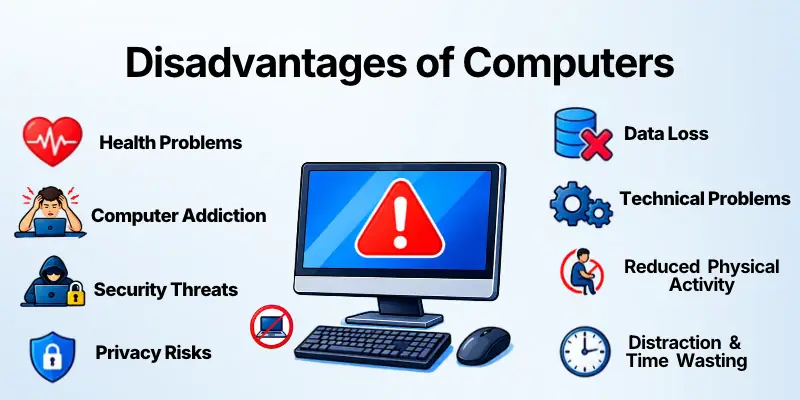
The following are 20 important disadvantages of computers.
- Health Problems
- Computer Addiction
- Security Threats
- Privacy Risks
- High Purchase
- Data Loss
- Technical Problems
- Reduced Physical Activity
- Distraction and Time Wasting
- Dependence on Electricity
- Internet Dependence
- Cybercrime
- Job Displacement
- Eye Strain
- Social Isolation
- Environmental Impact
- Learning Difficulties
- Software Compatibility Issues
- Rapid Technological Changes
- Electronic Waste
Let’s discuss the disadvantages of computer in detail.
1. Health Problems
Using a computer for long periods without suitable breaks can contribute to physical discomfort. Poor posture and an unsuitable workstation may lead to neck pain, back pain, and discomfort in the hands or wrists.
These problems can become more noticeable when users work for hours without changing positions. A comfortable setup and regular movement can help reduce unnecessary strain.
Computer-related discomfort may include:
- Neck and shoulder pain
- Back discomfort
- Wrist strain
- Muscle stiffness
- General physical fatigue
Protect Your Health: Use a comfortable workstation, maintain good posture, and take regular movement breaks.
2. Computer Addiction
Some people spend excessive amounts of time gaming, browsing websites, watching videos, or using social media on computers. This can make it harder to manage daily responsibilities.
When computer use becomes difficult to control, it may affect sleep, education, work, relationships, and other activities. Balanced habits can help users maintain control over their screen time.
Excessive use may lead to:
- Delayed sleep
- Missed responsibilities
- Reduced study time
- Less time with family
- Difficulty managing daily routines
Set Time Limits: Plan computer use around your responsibilities and make time for offline activities.
3. Security Threats
Computers can be targeted by malicious software, unauthorized access, and other digital threats. These problems may damage files, interrupt work, or expose sensitive information.
Security risks can increase when users install unknown software, ignore updates, or open suspicious attachments. Basic cybersecurity practices can reduce many common risks.
Security threats may include:
- Malware infections
- Unauthorized account access
- Harmful downloads
- Suspicious email attachments
- Attempts to steal information
Improve Security: Keep software updated, use trusted applications, and avoid opening suspicious links or files.
4. Privacy Risks
Computers often store personal information, photographs, documents, and account details. If this information is accessed by unauthorized people or shared carelessly, it may affect a user’s privacy.
Websites and applications may also collect information about how people use their services. Users should understand privacy settings and be careful when storing or sharing sensitive files.
Privacy risks may involve:
- Exposure of personal documents
- Stolen login details
- Unauthorized file access
- Excessive data collection
- Accidental sharing of private information
Protect Your Privacy: Use strong passwords, review privacy settings, and limit access to sensitive files.
5. High Purchase and Maintenance Costs
Buying a computer can require a significant investment, particularly when users need powerful hardware for gaming, design, or professional work. Additional expenses may include accessories, software, repairs, and upgrades.
Costs can also increase as a computer becomes older or needs replacement parts. Planning ahead helps users choose a device that fits their needs and budget.
Computer expenses may include:
- Initial purchase price
- Repairs and replacement parts
- Software subscriptions
- Accessories and peripherals
- Hardware upgrades
Set a Budget: Compare specifications and long-term costs before purchasing a computer.
6. Data Loss
Computer files can be lost because of accidental deletion, hardware failure, software errors, malware, or unexpected power interruptions. Losing important documents can create problems for students, employees, and businesses.
Although some deleted files may be recoverable, recovery is not always possible. Keeping separate backups is one of the best ways to reduce the impact of data loss.
Data loss can affect:
- School assignments
- Business documents
- Personal photographs
- Financial records
- Work projects
Back Up Regularly: Keep important files in a separate backup location and check that the backups can be restored.
7. Technical Problems
Computers can experience hardware failures, software crashes, slow performance, and unexpected error messages. These problems may interrupt work and require troubleshooting.
Some issues can be fixed with basic steps, while others need professional support. Regular maintenance can help users identify problems before they become more disruptive.
Common technical problems include:
- Slow performance
- Software crashes
- Overheating
- Faulty hardware
- Unexpected system errors
Maintain Your Device: Keep software updated, manage storage, and seek appropriate help when problems continue.
8. Reduced Physical Activity
Spending long periods at a computer often involves sitting in one position. If computer use replaces walking, exercise, or other movement, it may contribute to a less active lifestyle.
This is especially important for people who study or work at a desk for most of the day. Regular movement helps break up long periods of sitting.
Excessive sitting can result in:
- Less daily movement
- Muscle stiffness
- Reduced exercise time
- Physical discomfort
- More sedentary habits
Move Throughout the Day: Stand up regularly, stretch, and include physical activity in your daily routine.
9. Distraction and Time Wasting
Computers provide access to useful tools, but they also offer many distractions. Games, social media, videos, and unrelated websites can interrupt study sessions or work.
Switching between tasks too often can make it difficult to concentrate. Setting clear goals and reducing unnecessary notifications can help users stay focused.
Common distractions include:
- Social media browsing
- Online games
- Unrelated videos
- Frequent notifications
- Unnecessary website visits
Stay Focused: Close unrelated tabs and set specific times for work, study, and entertainment.
10. Dependence on Electricity
Most desktop computers and many other computer systems require electricity to operate. A power outage can interrupt work, prevent access to files, or shut down a device unexpectedly.
Sudden power loss may also cause unsaved work to disappear. Laptops with charged batteries offer some flexibility, but they also need power eventually.
Power-related problems may cause:
- Interrupted work
- Unexpected shutdowns
- Unsaved document loss
- Delays in business operations
- Inability to access equipment
Prepare for Interruptions: Save work regularly and consider a suitable backup power solution when needed.
11. Internet Dependence
Many computer activities rely on an internet connection, including online meetings, cloud services, websites, and remote collaboration tools. When the connection fails, these services may become unavailable.
Not every computer task requires the internet, however. Offline applications and locally stored files can still be useful when connectivity is limited.
Internet-related difficulties may include:
- Interrupted online classes
- Failed video meetings
- Delayed file transfers
- Inaccessible websites
- Problems using cloud services
Keep Offline Options: Save essential files locally and use offline software when internet access is unreliable.
12. Cybercrime
Cybercriminals may use computers and internet services to steal information, commit fraud, or gain unauthorized access to accounts. Both individuals and organizations can become targets.
Users may face risks when they reuse passwords, trust suspicious messages, or share confidential information with unverified sources.
Cybercrime can involve:
- Phishing attacks
- Online financial fraud
- Identity theft
- Account hijacking
- Unauthorized data access
Be Cautious Online: Verify suspicious requests, use unique passwords, and enable multifactor authentication when available.
13. Job Displacement
Computers and computer-based automation can change how work is performed. Some routine tasks may require fewer workers when organizations introduce software or automated systems.
At the same time, technology creates new types of work and changes the skills many jobs require. The impact varies depending on the industry and occupation.
Employment challenges may include:
- Automation of routine work
- Changes in job responsibilities
- Reduced demand for some tasks
- Need for additional training
- Pressure to learn new technologies
Develop New Skills: Improve your digital knowledge and learn skills that complement computer-based work.
14. Eye Strain
Looking at a computer screen for long periods can cause digital eye strain in some users. Symptoms may include tired eyes, dryness, blurred vision, headaches, or difficulty focusing.
Glare, poor lighting, and long periods without breaks can make discomfort worse. Adjusting the workspace and taking regular visual breaks may help.
Eye strain may involve:
- Dry or irritated eyes
- Temporary blurred vision
- Headaches
- Difficulty focusing
- Tired eyes after screen use
Rest Your Eyes: Take regular breaks from the screen, adjust brightness, and seek professional advice if symptoms persist.
15. Social Isolation
Spending too much time on a computer can reduce opportunities for face-to-face interaction. This may affect relationships when online activities consistently replace time with family, friends, or the wider community.
Computers can also help people stay connected, so the effect depends on how they are used. A balanced routine can support both online and in-person relationships.
Excessive use may lead to:
- Less face-to-face communication
- Fewer shared activities
- Reduced time with family
- Neglected social commitments
- Less participation in local activities
Maintain Relationships: Make time for in-person conversations and activities away from the computer.
16. Environmental Impact
Computers require materials, electricity, and manufacturing processes. Their production, use, and disposal can affect the environment, especially when devices are replaced frequently or discarded improperly.
Older equipment may contain materials that need careful handling. Extending a device’s useful life and recycling it through appropriate programs can help reduce waste.
Environmental concerns include:
- Electricity consumption
- Use of manufacturing materials
- Packaging waste
- Electronic waste
- Disposal of old components
Reduce Waste: Maintain your computer, repair it when practical, and use responsible electronic recycling services.
17. Learning Difficulties
Computers provide useful learning resources, but some students may struggle if they lack digital skills or access to suitable devices. Technical problems and distracting applications can also interrupt the learning process.
Students may need guidance to use educational software, evaluate online information, and manage their time effectively.
Learning challenges can include:
- Difficulty using software
- Limited access to devices
- Confusion with online resources
- Distractions during study
- Trouble evaluating information
Build Digital Skills: Practice basic computer tasks and ask for guidance when using unfamiliar software or learning platforms.
18. Software Compatibility Issues
Not every application works on every computer or operating system. Some programs require specific hardware, software versions, or technical settings.
Compatibility problems may prevent users from opening files or installing applications. Checking system requirements before installing software can reduce these difficulties.
Compatibility issues may involve:
- Unsupported applications
- Older operating systems
- Missing drivers
- File format problems
- Hardware limitations
Check Requirements: Confirm that your computer supports the software you plan to use.
19. Rapid Technological Changes
Computer technology changes over time as new hardware, software, and operating systems become available. A device that meets today’s needs may become less suitable for demanding tasks in the future.
Frequent upgrades can be expensive, and some older devices may eventually stop receiving important software or security updates.
Technological changes may create:
- Pressure to upgrade hardware
- New software requirements
- Compatibility challenges
- Learning new interfaces
- Additional maintenance costs
Buy for Your Needs: Choose a computer that meets your current requirements and offers enough capacity for expected use.
20. Electronic Waste
Computers eventually become outdated, damaged, or unsuitable for their original purpose. When discarded improperly, their components can contribute to electronic waste and environmental pollution.
Responsible disposal is important because computer equipment may contain materials that should not enter ordinary waste streams. Some devices can also be repaired, reused, donated, or recycled.
Electronic waste problems include:
- Discarded computer components
- Unnecessary device replacement
- Improper disposal
- Loss of reusable materials
- Pollution from poorly managed waste
Dispose Responsibly: Consider repair, reuse, donation, or approved electronic recycling before discarding an old computer.
Common Uses of Computers
Computers are used in many areas of modern life. Their applications depend on the needs of individuals, businesses, and organizations.
| Field | Common Uses |
| Education | Online classes, assignments, research |
| Business | Accounting, reports, customer records |
| Healthcare | Patient records, medical administration |
| Banking | Online transactions, account management |
| Communication | Email, video calls, messaging |
| Entertainment | Gaming, videos, music |
| Graphic Design | Logos, posters, digital artwork |
| Science | Data analysis, research, simulations |
| Transportation | Booking systems, route planning |
| Government | Digital records, online public services |
Factors to Consider Before Buying a Computer
Choosing the right computer can improve your experience and help you avoid unnecessary expenses. Consider these factors before making a purchase.
1. Purpose: Decide whether you need a computer for studying, office work, programming, graphic design, gaming, or general use. Different tasks require different levels of performance.
2. Processor:The processor affects how a computer handles tasks. Choose one that is suitable for your software and workload rather than paying for more power than you need.
3. RAM:RAM helps a computer manage active applications. More memory can improve multitasking, especially when using demanding programs.
4. Storage: Consider the amount of space you need for documents, software, photographs, and other files. An SSD generally offers faster startup and file access than a traditional hard drive.
5. Display and Size: Choose a screen size and resolution that suit your work. If you need to carry the computer frequently, consider its weight and portability.
6. Battery Life: For a laptop, battery life matters when you study or work away from a power outlet. Actual battery performance varies with settings and workload.
7. Budget:Compare the purchase price with the computer’s specifications, warranty, accessories, and likely maintenance expenses.
8. Upgrade and Repair Options:Consider whether the computer can be repaired or upgraded if your needs change. Check warranty conditions and the availability of suitable service.
Common Mistakes to Avoid When Using a Computer
Good computer habits can help protect your information and keep your device working properly. Avoid these common mistakes.
- Ignoring updates: Install appropriate system and security updates.
- Skipping backups: Keep copies of important files in a separate location.
- Using weak passwords: Choose strong, unique passwords for important accounts.
- Installing unknown software: Download programs from trusted sources.
- Opening too many applications: Close unnecessary programs when performance is poor.
- Ignoring physical comfort: Adjust your chair, screen, and keyboard position.
- Using the computer without breaks: Take regular breaks from prolonged sitting and screen use.
- Ignoring suspicious messages: Verify links and attachments before opening them.
How to Maintain a Computer Properly
Regular maintenance can help a computer remain reliable and easier to use. Follow these basic steps.
- Keep software updated: Install suitable operating system and application updates.
- Back up important files: Maintain a separate copy of your valuable data.
- Manage storage: Remove unnecessary files and keep enough free space for normal operation.
- Protect the device: Use built-in security tools or reputable security software as appropriate.
- Keep it clean: Prevent dust buildup and follow the manufacturer’s cleaning guidance.
- Check performance: Review running applications if the computer becomes slow.
- Handle it carefully: Protect the device from spills, drops, and excessive heat.
- Shut down appropriately: Save your work and use the normal shutdown process when needed.
Quick Comparison: Advantages vs. Disadvantages of Computers
| Advantages of Computers | Disadvantages of Computers |
| Process information quickly | Can cause eye strain |
| Store large amounts of data | Data can be lost |
| Support multitasking | Too many tasks can slow performance |
| Make communication easier | Can create privacy risks |
| Provide access to information | Online information may be unreliable |
| Support education | Can distract students |
| Improve productivity | May contribute to overdependence |
| Help businesses manage work | Require purchase and maintenance costs |
| Support online banking | Can be targeted by cybercriminals |
| Provide entertainment | Excessive use can affect daily routines |
| Help with research | Require critical evaluation of sources |
Final Thoughts
Computers have become essential tools for education, communication, business, research, and entertainment. Their speed, storage capacity, and ability to run different applications help people complete many tasks more efficiently.
However, computers also have disadvantages, including health concerns, security risks, data loss, maintenance costs, and excessive screen time. These problems can often be reduced through responsible use, regular maintenance, and good digital habits.
Overall, computers are valuable when people use them with a clear purpose and a balanced routine. Understanding both their advantages and disadvantages helps us make better decisions and get more value from technology.
Frequently Asked Questions (FAQs)
Now, let’s explore some frequently asked questions.
1. What are the main advantages of computers?
The main advantages include high speed, accurate calculations, large storage capacity, easy communication, access to information, and improved productivity.
2. What are the main disadvantages of computers?
The main disadvantages include health problems, security threats, privacy risks, data loss, technical issues, and the possibility of excessive screen time.
3. Why are computers important in education?
Computers help students access digital books, attend online classes, prepare assignments, conduct research, and practice different skills.
4. How do computers help businesses?
Businesses use computers for accounting, customer management, communication, inventory tracking, reporting, marketing, and other routine operations.
5. Can computers affect human health?
Yes. Long periods of computer use without suitable breaks may contribute to eye strain, muscle discomfort, poor posture, and reduced physical activity.
6. How can I protect my computer from security threats?
Keep your software updated, use strong passwords, enable available security features, download programs from trusted sources, and avoid suspicious links or attachments.
7. What is the difference between a desktop and a laptop?
A desktop is generally designed to remain in one place and often uses separate components such as a monitor and keyboard. A laptop combines the main components into a portable device with a built-in screen and keyboard.
8. How can I prevent data loss on a computer?
Back up important files regularly to a separate drive or suitable cloud service. Check your backups to make sure the files can be restored when needed.
9. Are computers useful for graphic design?
Yes. Computers run design software that helps users create logos, social media posts, posters, illustrations, and other digital materials.
10. How can computers be used responsibly?
Use computers for meaningful tasks, protect personal information, maintain good posture, take regular breaks, keep software updated, and balance screen time with other activities.






- Be Respectful
- Stay Relevant
- Stay Positive
- True Feedback
- Encourage Discussion
- Avoid Spamming
- No Fake News
- Don't Copy-Paste
- No Personal Attacks
- Be Respectful
- Stay Relevant
- Stay Positive
- True Feedback
- Encourage Discussion
- Avoid Spamming
- No Fake News
- Don't Copy-Paste
- No Personal Attacks
